ScoreApp platform updates: recovery codes, relative percent scores, and AI version history

Three small but useful improvements just landed – here’s what they do and why they matter.
We ship improvements to ScoreApp regularly – some are big headline features, others are the kind of quiet, thoughtful changes that make your day-to-day a little smoother. This week’s updates fall firmly in that second camp.
Here’s what’s new.
1. Personalize your questions with merge tags
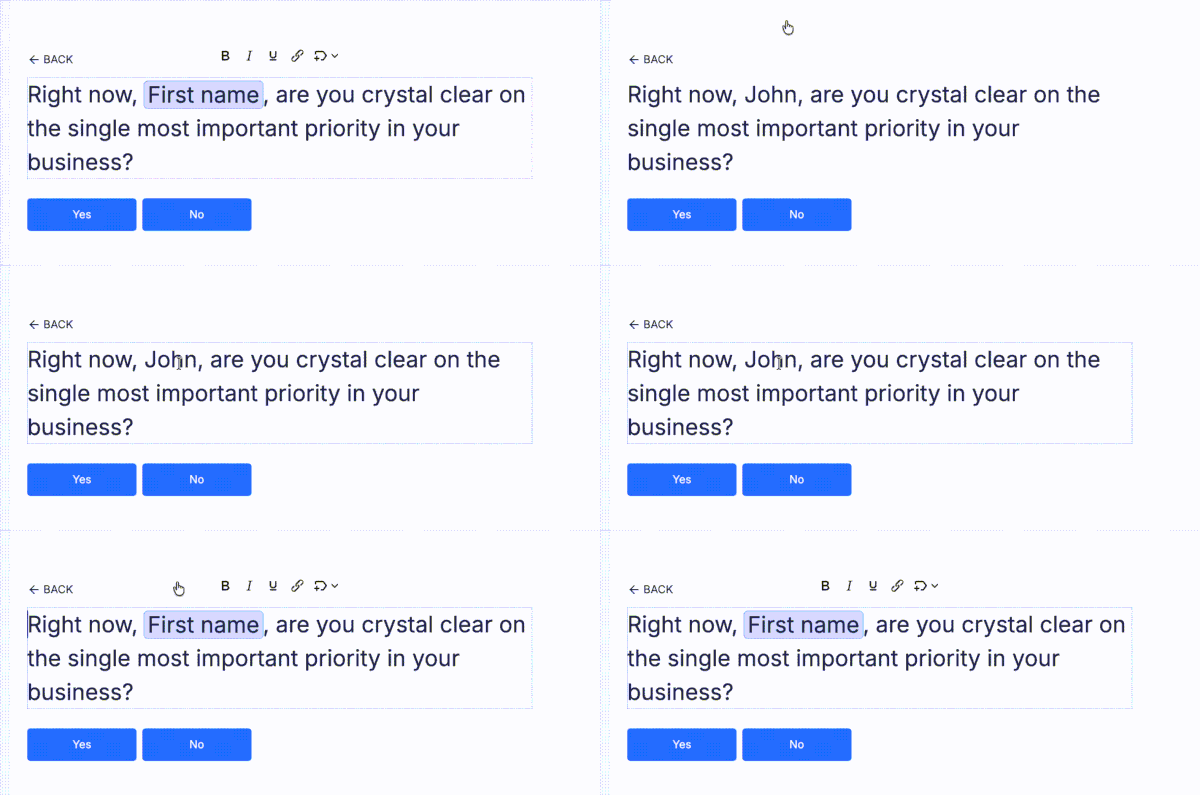
What changed: You can now insert merge tags directly into your scorecard questions and instruction blocks – pulling in lead form fields, previous question answers, scorecard name, and UTM parameters.
Questions used to say the same thing to everyone. That’s fine for simple assessments, but the moment you want a lead to feel like the experience was built for them, a static question falls flat. Merge tags change that.
Why it matters: Personalization inside the question flow makes your assessment feel less like a form and more like a conversation. You can greet someone by name, reference what they just told you, or tailor a follow-up question based on their previous answer. Leads who feel seen are more likely to complete – and the data you collect is richer because context is woven into every response.
On the leads overview page, you’ll see each question exactly as that individual lead saw it – with the merge tag already resolved. So if one lead saw “How confident are you feeling, Sarah?” and another saw “How confident are you feeling, Marcus?”, your leads view reflects that. In exports and insights, the original merge tag syntax is preserved so your data stays clean and consistent across all leads.
How to use it: Go to any question in your scorecard builder, click the label field, and select the merge tag button. Choose from available fields – lead form inputs, custom fields, prior question answers, scorecard name, or UTM parameters. The preview will show a default value (like “John”) so you can see how it’ll render before publishing. Merge tags work in instruction blocks too.
A note on what’s not supported: Merge tags can’t include images, links to result pages (the lead hasn’t finished yet), or references to other question labels – that last one prevents circular loops where questions reference each other endlessly.
2. A new merge tag for relative percent category scores
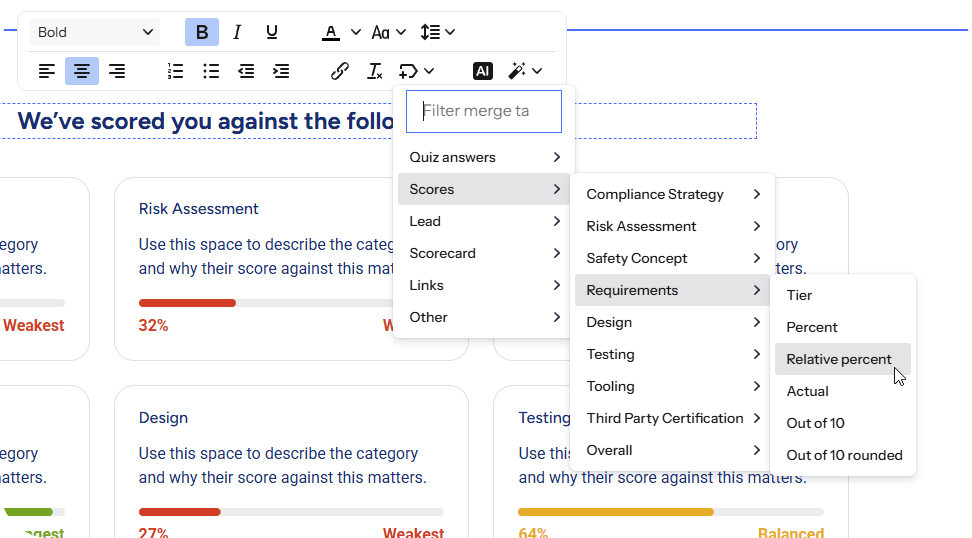
What changed: There’s a new merge tag available in your results page editor: relative percent. It displays a category score as a proportional share of 100%, calculated across all categories in your scorecard.
Here’s a quick example of how it works. Imagine your scorecard has three categories: Strategy, Execution, and Mindset. A respondent scores 60% in Strategy, 30% in Execution, and 10% in Mindset. The relative percent merge tag recalculates those scores so they add up to 100% – giving you 60%, 30%, and 10% respectively in this case, but redistributing proportionally when raw scores are less even.
Why it matters: Not every scorecard is built with clean, equal-weighted categories. If your categories have different maximum scores or question counts, the raw percentage for each one can feel a bit arbitrary to someone reading their results. Relative percent gives you a cleaner, more intuitive way to show people how their scores compare to each other – which often makes results pages feel clearer and more meaningful.
This is particularly useful for:
- Coaching and consulting assessments where you want to show a client where most of their challenge sits
- Business readiness scorecards that reveal which area needs the most attention
- Diagnostic tools where proportional breakdown is more insightful than raw scores
How to use it: In the results page editor, open the merge tags panel and look for the new Relative Percent option under your category scores. Insert it anywhere you’d normally use a score merge tag.
3. Version history is now live in the AI scorecard builder
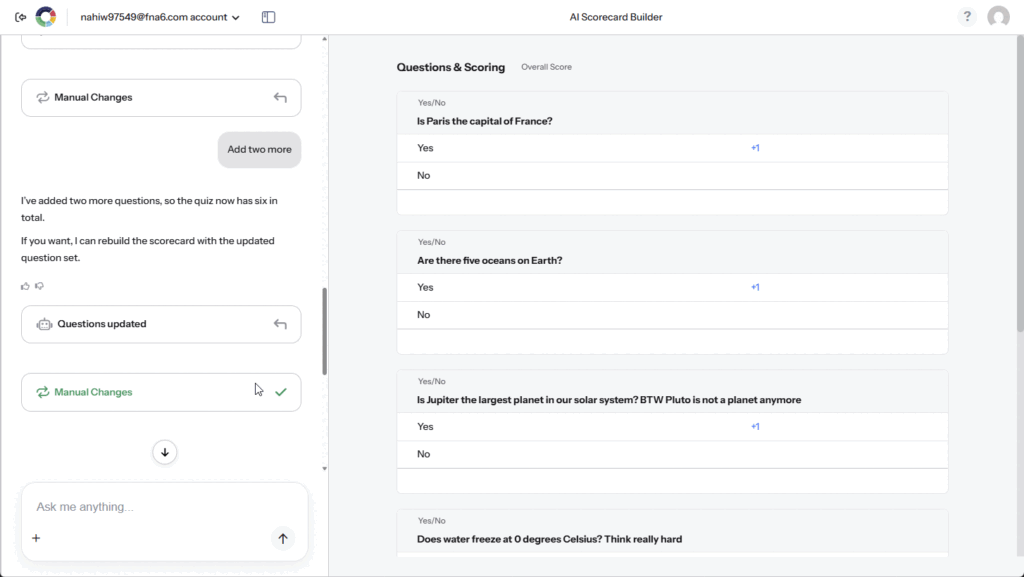
What changed: The AI scorecard builder now tracks every change made to your scorecard – both AI-generated updates and manual edits – and lets you revert to any previous version instantly.
Every time the AI makes a change, or you make a manual edit yourself, a new version is saved. You can scroll back through the history and restore any earlier state with a single click.
Why it matters: Building a great scorecard is rarely a straight line. You might ask the AI to take your questions in a new direction, realize it’s not quite right, and want to go back. Or you might make a few manual tweaks, change your mind, and wish you’d kept the original. Until now, there was no easy way to undo that – you just had to start over or rebuild from memory.
Version history removes that risk entirely. You can experiment freely – try a new angle, test a different structure, let the AI take a run at something – knowing that your previous work is always one click away.
Who benefits most: Anyone actively building or iterating on their scorecard. This is especially useful if you’re testing different question sets for different audiences, refining your scoring logic over time, or collaborating with a team where multiple people are making edits.
How to use it: Inside the AI builder, your change history appears in the left panel. Each entry is labeled as either an AI update or a manual change. Click any entry to preview that version, and restore it if you want to go back.
4. Expiring result pages – keep your insights exclusive
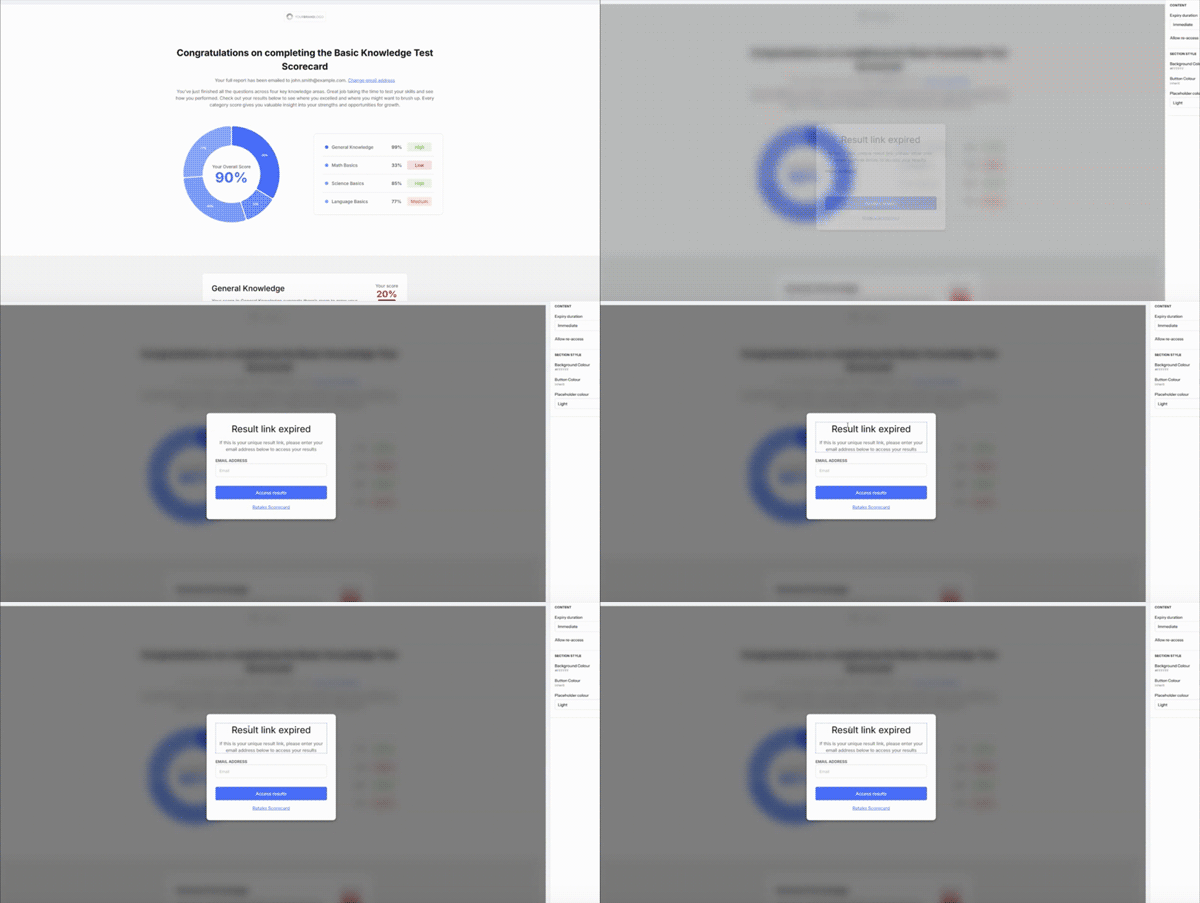
What changed: You can now set an expiry window on any result page. Once that window closes, the page locks – and anyone visiting it won’t see your scorecard results without re-verifying themselves.
Before this update, every result page URL was permanently accessible. That meant a lead could share their results with a colleague, a competitor, or anyone else who wanted a look at your insights, your recommendations, or your methodology – without ever completing the scorecard or handing over their contact details.
Why it matters: Your scorecard results are valuable. For many ScoreApp users, the results page is where the real intellectual property lives – the diagnosis, the scoring breakdown, the personalized recommendations. Letting that content circulate freely undermines the core mechanic: you give insight, they give you their data.
Expiring result pages close that loop. When someone wants access to a results page that’s expired, they either re-verify with their email address (proving they’re the original lead) or they’re redirected to complete the scorecard themselves – which means a new lead in your account.
This is particularly useful for:
- Consultants and coaches whose results pages contain proprietary frameworks or detailed diagnostics
- Businesses running gated assessments where the insight is the value exchange
- Lead generation campaigns where you want every viewer to be a captured lead, not just a viewer
How to set it up: Go to any result page, open Settings, and toggle on Enable link expiry. You can set the duration – from a short grace period (around 5–10 minutes by default, so leads have time to fill in the lead form before the page locks) up to several days. You can also choose whether expired pages allow re-access via email verification, or block entirely and redirect to a page of your choice.
There’s also a new Result Expiry Pop-up section you can add and customize – edit the text, the button, and the redirect URL to match your brand and flow.
Two new activity events have been added to your leads overview: ResultPageVisited and ResultPageReactivated – so you can see exactly who’s returning to their results, and who’s reactivated an expired page.
5. Advanced phone number validation – cleaner data, fewer fakes
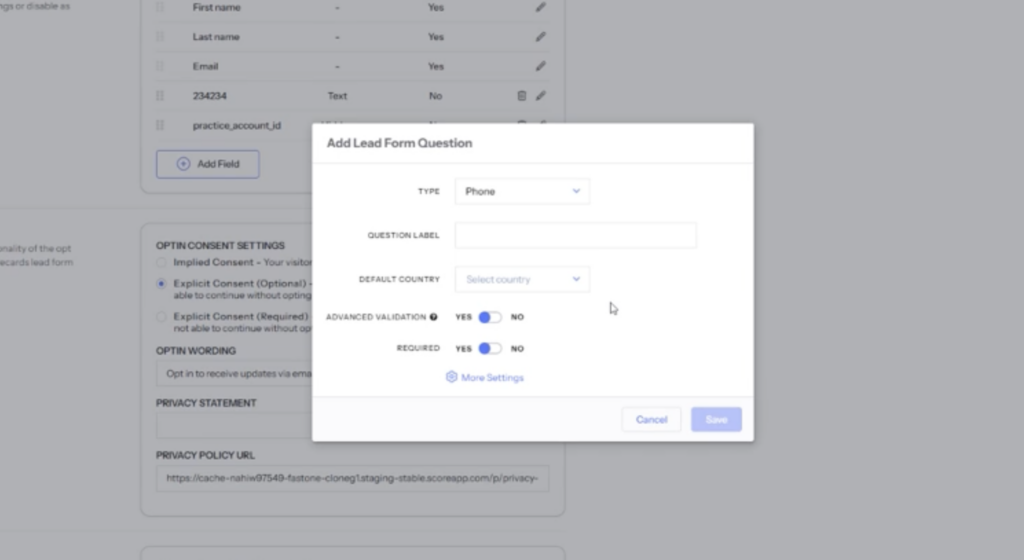
What changed: A new Advanced Validation option is now available on phone number fields in your lead forms. When enabled, it checks whether the number entered is a real, active phone number – not just whether it looks like one.
Why it matters: Standard phone number fields check format: does it have the right number of digits, the right structure? That’s a low bar. Someone can type in ten random numbers and pass the check.
Advanced Phone Number Validation goes further. It connects to Twilio in real time and asks: is this a real number? Is it active? Does it exist? If it doesn’t, the form flags it before the lead is saved. The result is a cleaner CRM, fewer wasted follow-up attempts, and more confidence that the contact details you’re collecting are genuine.
For businesses where phone outreach is part of the sales process, this matters. Calling bad numbers wastes time and can skew your conversion data. This update helps make sure every number in your account is worth dialing.
A note on availability: Advanced Phone Number Validation is available on the Business tier and above – the same as Advanced Email Validation. If you’re on a lower plan, you’ll see the option but will be prompted to upgrade to enable it.
How to use it: In your lead form settings, add or edit a Phone field. You’ll see a new Advanced Validation toggle in the field settings. Switch it on and you’re done – validation runs automatically for every submission.
6. You can now log in using a recovery code
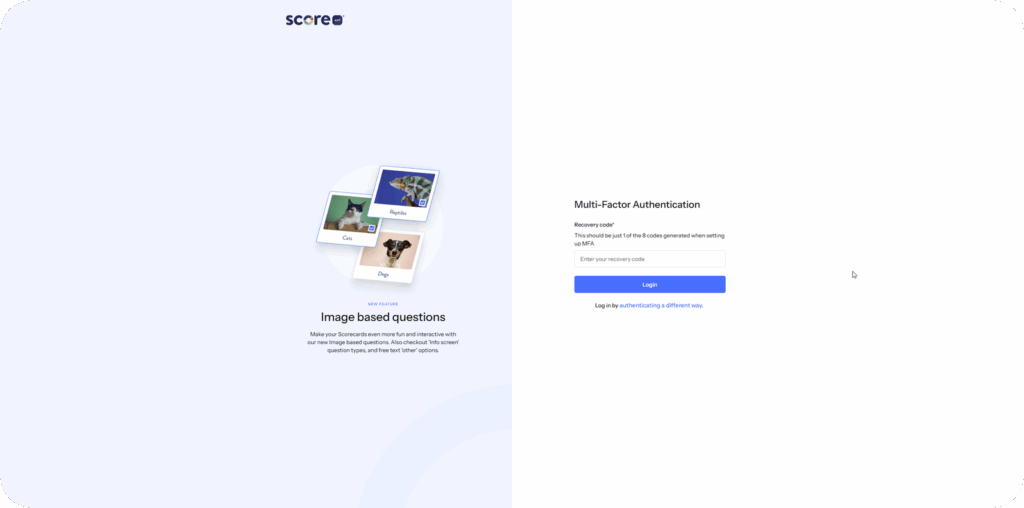
What changed: Multi-factor authentication (MFA) now accepts recovery codes as a valid way to verify your identity.
If you’ve enabled MFA on your ScoreApp account (which we recommend), you normally log in using an authenticator app like Google Authenticator or Authy. That works brilliantly – until you lose access to the device your authenticator is on.
That’s where recovery codes come in. When you first set up MFA, ScoreApp generates a set of eight one-time recovery codes. Previously, these were there for emergencies but couldn’t be used directly at the login screen. Now they can.
Why it matters: Getting locked out of your own account is frustrating and can bring your lead generation to a halt. This update means that if you lose your phone, switch devices, or just can’t access your authenticator app, you have a reliable backup route in – without needing to contact support.
What to do: If you haven’t already, set up MFA on your account and save your recovery codes somewhere secure (a password manager like 1Password or Bitwarden is ideal). You’ll find MFA settings under your account security options.
What’s next
These updates are live now. Log in to your ScoreApp account to explore them.
If you’re not yet using ScoreApp to qualify your leads and reveal who’s ready for the next step, start using ScoreApp here →