ScoreApp now has an MCP: ask Claude or ChatGPT about your leads, in plain English

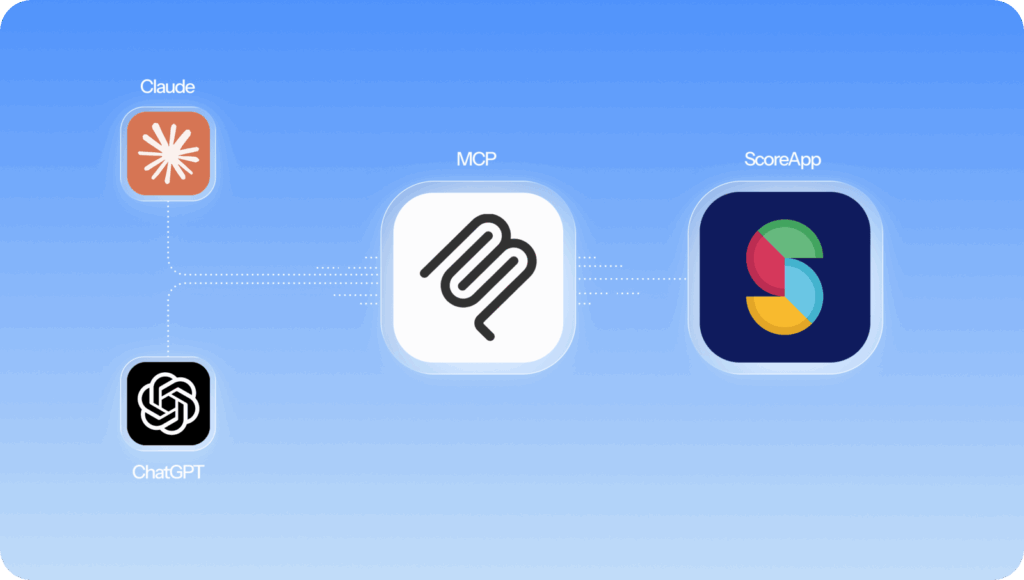
Millions of people now open Claude or ChatGPT before they open an app, a doc or a spreadsheet. With this in mind we’ve added a new connection between ScoreApp and you favoured AI tool. With our new MCP connector, you can ask Claude or ChatGPT questions about your scorecards and leads – in plain English – and get real answers, pulled straight from your account.
No exports. No dashboard-hopping. No copying data into a doc so an AI tool can read it. Just a question, and an answer. It streamlines the connection between
What’s changed
What changed: ScoreApp now has an MCP (Model Context Protocol) connector. Connect your account to Claude or ChatGPT once, and either assistant can read your scorecards, questions, leads, answers, and scores – then answer questions about them in plain English.
The connection is read-only. You AI tool, agent or assistant can see your data, but it can’t change anything in your account.
Why it matters
Most of the useful questions about your leads never get asked, because getting to the answer takes too long. You’d have to log in, find the right scorecard, export the results, and build a chart, just to check something like “how many leads did we get last month?”
With the MCP connector, you just ask.
In a recent demo, our team asked Claude a simple question: “How many leads did we get on the sales and marketing excellence scorecard last month?” Claude found the scorecard, pulled the numbers, and answered directly – 440 leads over the last year, 390 completed and 50 abandoned.
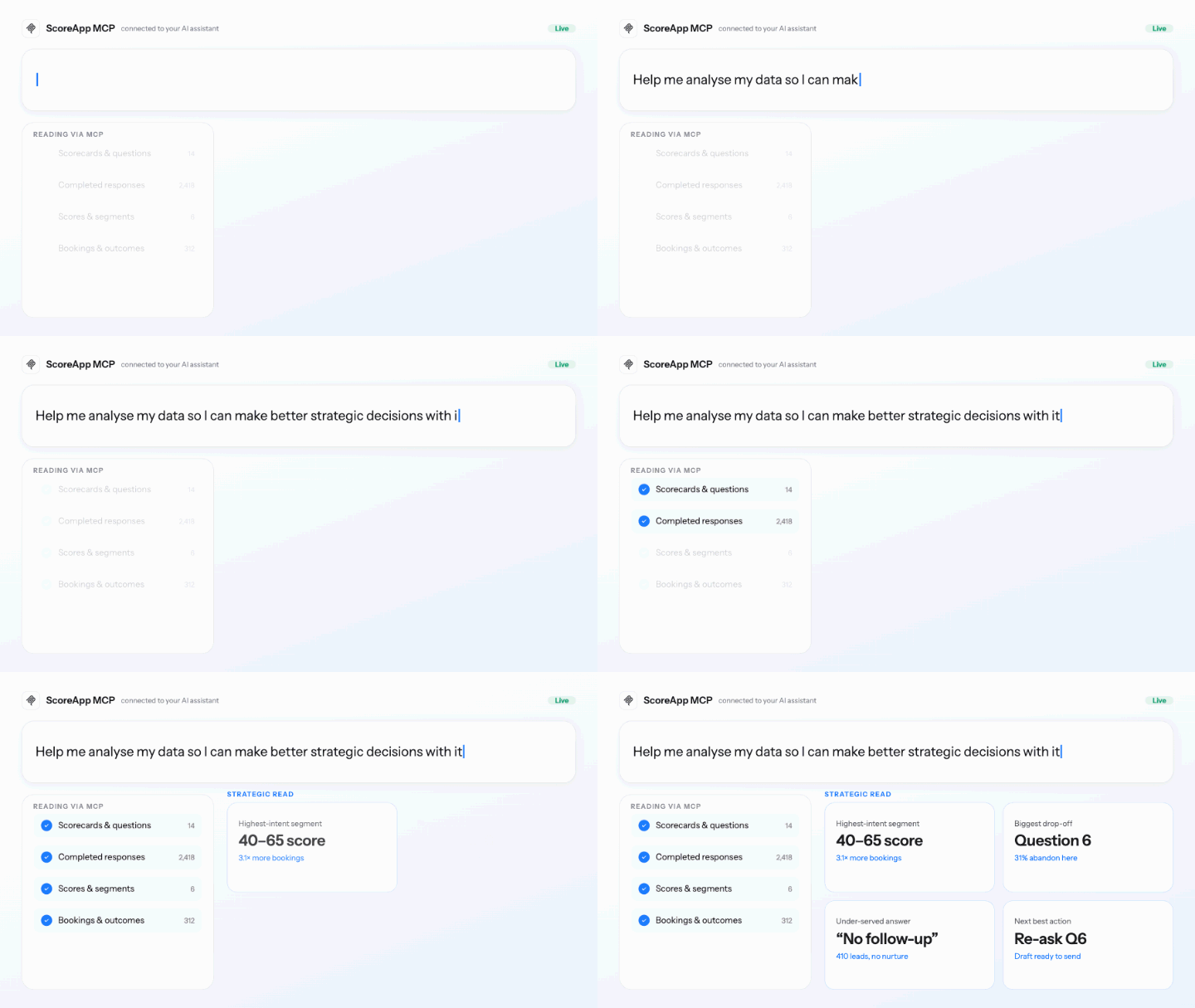
Then came the real test: “Build me an ICP report for those leads.” Claude pulled in the full set of lead data, worked through it in parallel, and came back with a report profiling the ideal customers behind those results – all without anyone touching a spreadsheet.
That’s the shift. Your scorecard data stops being something you have to go and retrieve, and becomes something you can just ask about, the same way you’d ask a colleague.
What you can ask it
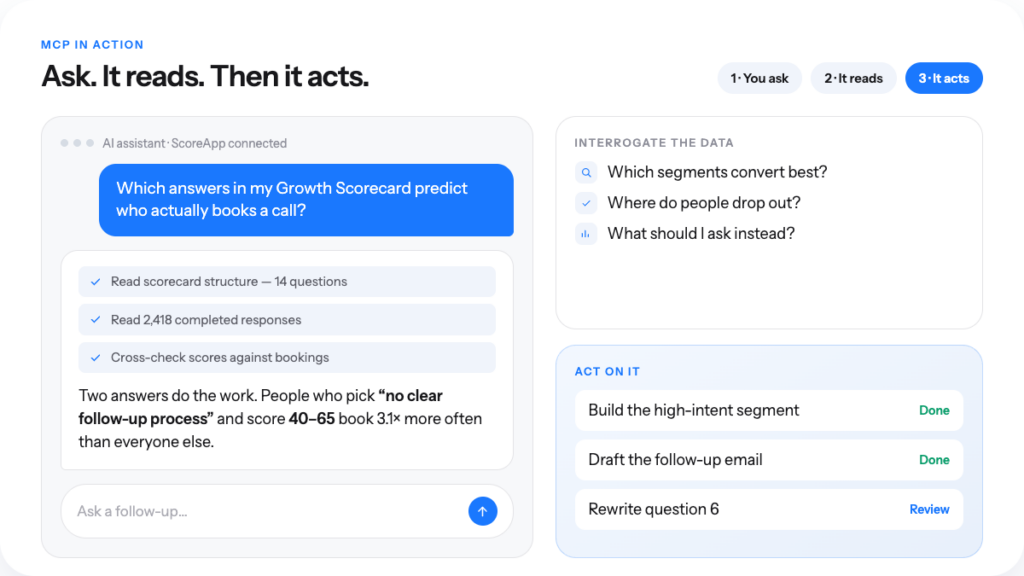
A few starting points:
- “How many leads did my [scorecard name] generate last month?”
- “What’s my completion rate versus abandonment rate on [scorecard name]?”
- “Build an ICP report from the leads on [scorecard name].”
- “Which scorecard is generating the most leads right now?”
- “Summarize the top scores and what they tell us about lead quality.”
Because it’s a genuine conversation, you can follow up, narrow the question, or ask it to go deeper – the same as you would with any Claude or ChatGPT chat.
How to connect it
It takes about two minutes.
In Claude:
- Sign in at claude.ai and open Settings.
- Select Connectors, then Add custom connector.
- Paste in the connection URL:
https://mcp.scoreapp.com, and name it ScoreApp. - On Team and Enterprise plans, an owner adds the connector first, then members connect to it.
Works on every Claude plan – free accounts can add one custom connector.
In ChatGPT:
- Sign in at chatgpt.com and open Settings.
- Open Apps & Connectors, then turn on Developer mode under Advanced settings.
- Go back to Apps & Connectors and select Create.
- Paste in
https://mcp.scoreapp.com, name it ScoreApp, and choose OAuth.
This needs a Plus, Pro, Business, Enterprise, or Edu plan, with Developer mode turned on.
You’ll also find the connection URL directly from any scorecard – look for Integrate, which takes you to your account’s MCP settings.
Try it today
If you’re already asking Claude or ChatGPT questions every day, this just means you can ask them about your leads too. Connect your account and see what your data has been trying to tell you.