ScoreApp platform updates: AI chat in the questions builder

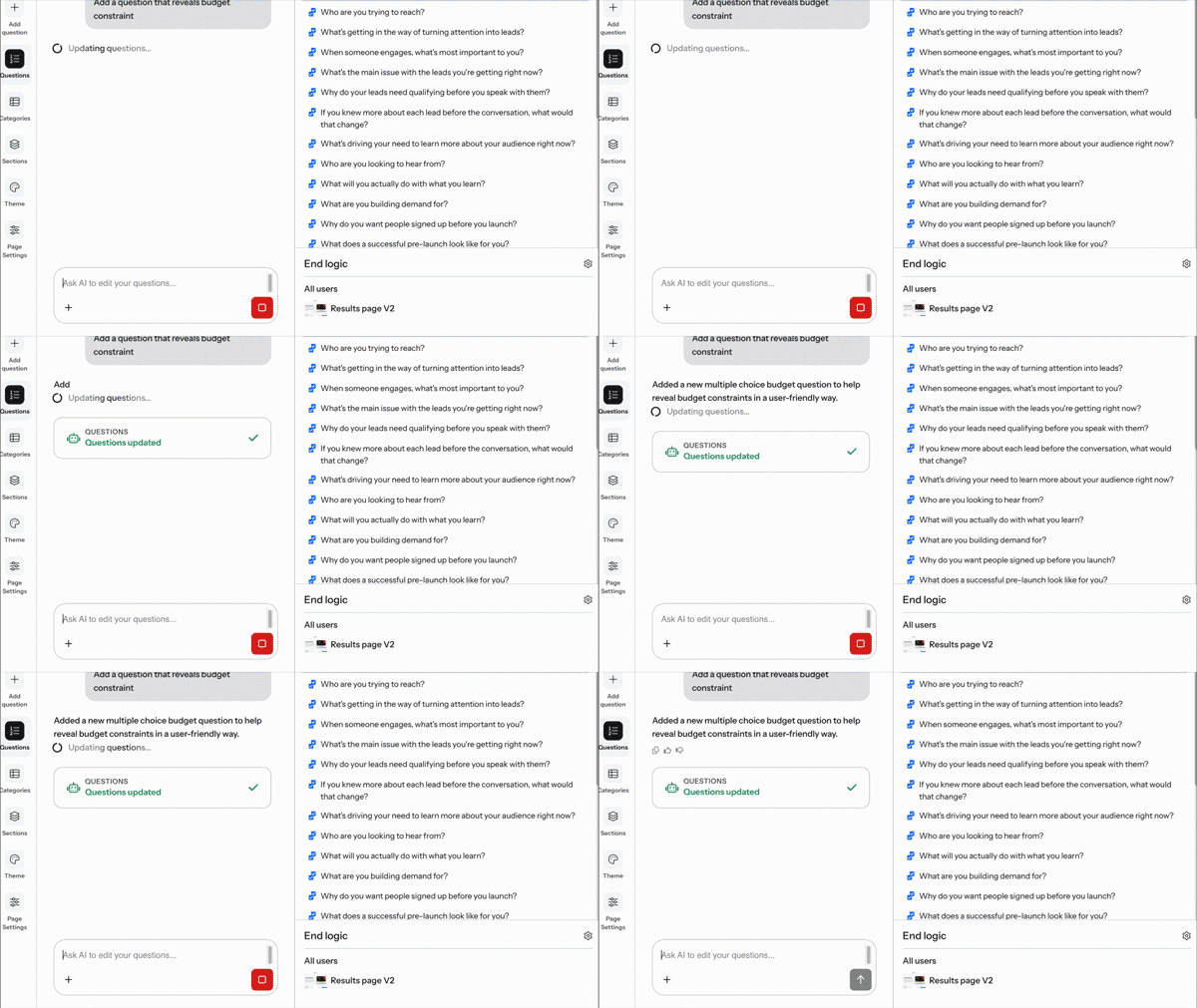
Your questions do the real work in a scorecard. They’re what qualifies a lead, sorts them into the right category, and decides what happens next – so getting them right matters, and building them out has always taken time. The latest ScoreApp update speeds that up: the AI chat you already use in the page builder is now available in the questions builder too.
1. AI chat is now built into the questions builder
What changed: You can build and edit your scorecard questions through AI chat – creating questions, adding and editing categories, assigning scoring to answer options, and adjusting question settings, all by describing what you want.
Until now, the AI chat lived in the page builder only. Structuring your questions meant working through the interface field by field: add a category, add each question, set each answer’s scoring, then repeat. It’s not difficult work, but it’s slow, and it’s the part of scorecard building most likely to stall a project halfway through.
Why it matters: The fastest way to get a scorecard live is to stop treating structure as admin. Ask for a new category with three questions under it and you get them, scoring included. Ask to turn on multi-select across every question and it’s done in one instruction instead of twenty clicks. The chat also works as a toggle rather than replacing your existing sidebar, so you can see exactly what it’s changing while it changes it – which means you stay in control of the output rather than checking it afterward.
A few things it handles well:
- Building a new category and its questions in a single instruction
- Applying a setting across every question at once – allow multi-select, show instructions
- Writing instruction text that explains how a question type works to your respondents
- Repositioning an image that’s already attached to a question – background on desktop, above the question on mobile
One honest limit: the chat can reposition and rearrange media that’s already attached to a question, but it can’t attach a new image for you. That one’s still a manual step.
How to use it: Open your scorecard’s questions builder and click the AI chat button. It toggles on and off without collapsing your other sidebar, so you can keep an eye on your questions while you work. Then just describe the change you want – it can do anything the settings panel on the right can do.

Small changes compound. Every minute you’re not spending clicking through question settings is a minute you can spend on the part that actually moves results – the questions themselves, and what you do with the answers.