ScoreApp platform update: AI result pages with built-in personalization

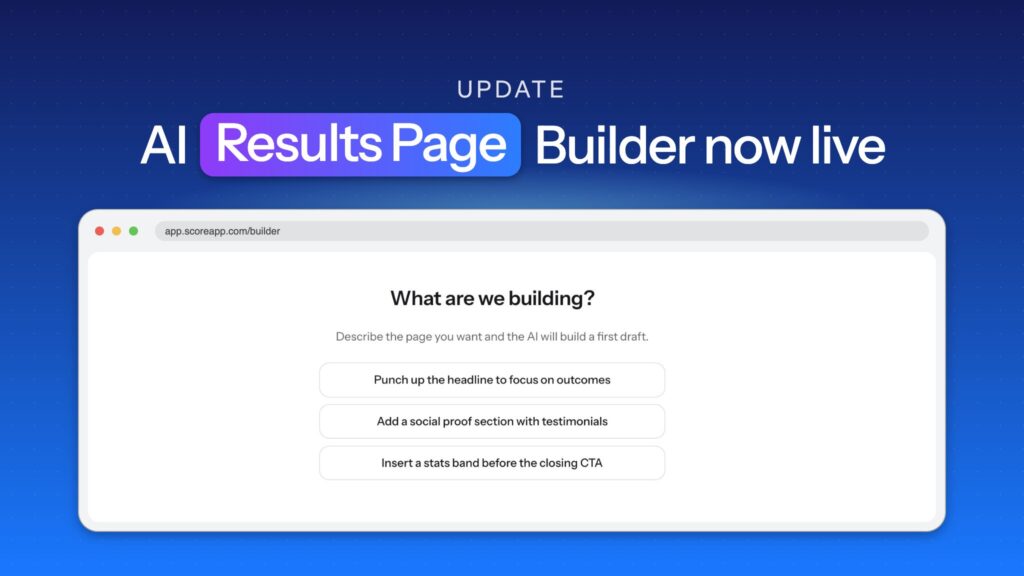
Your result page is where a lead finds out what their score means and what to do next. It’s also where many of them decide whether to talk to you. That’s why our latest ScoreApp update brings AI result pages to everyone. You get the same AI builder you already use for landing pages, plus new ways to personalize each section by score, audience, and sign-up status.
Here’s what’s new and how to use it.
1. Build result pages with AI
What changed: You can now create result pages with the AI builder, in the same way you create AI landing pages.
You chat with the AI on the left and your page updates on the right. Click any section or element to focus on it, then ask the AI to change just that part. You can also edit text yourself.
Why it matters: Result pages carry a lot of weight, and writing a strong one from scratch takes time. Now you can describe what you want, refine it in conversation, and fine-tune the details by hand. That’s less time on layout and more time on the message your leads need to hear.
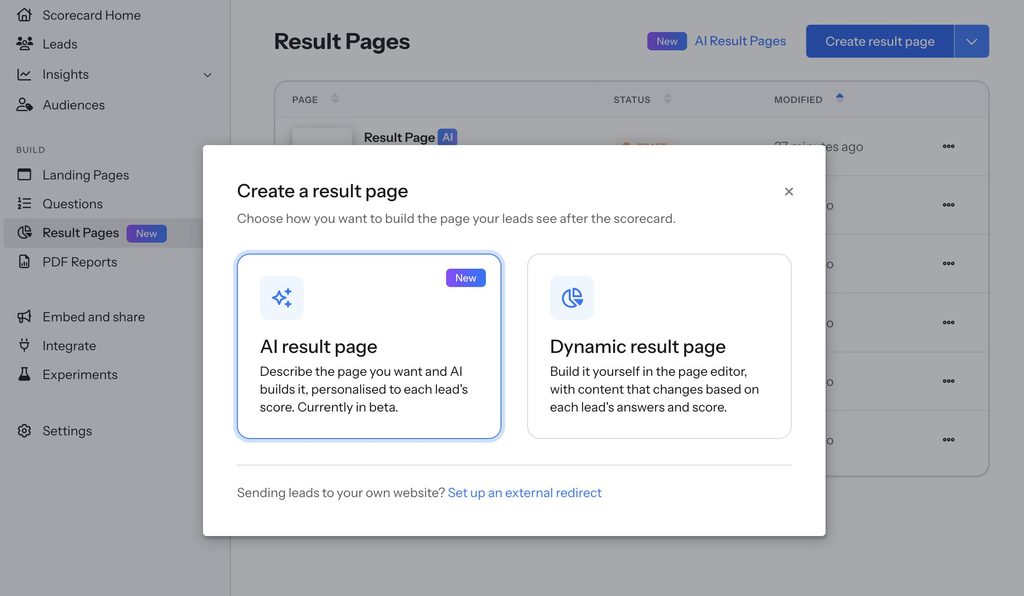
How to use it: In your scorecard, go to Result pages and click Create result page. Choose AI result page (or Dynamic result page if you’d rather use the classic editor).
2. Control who sees each section
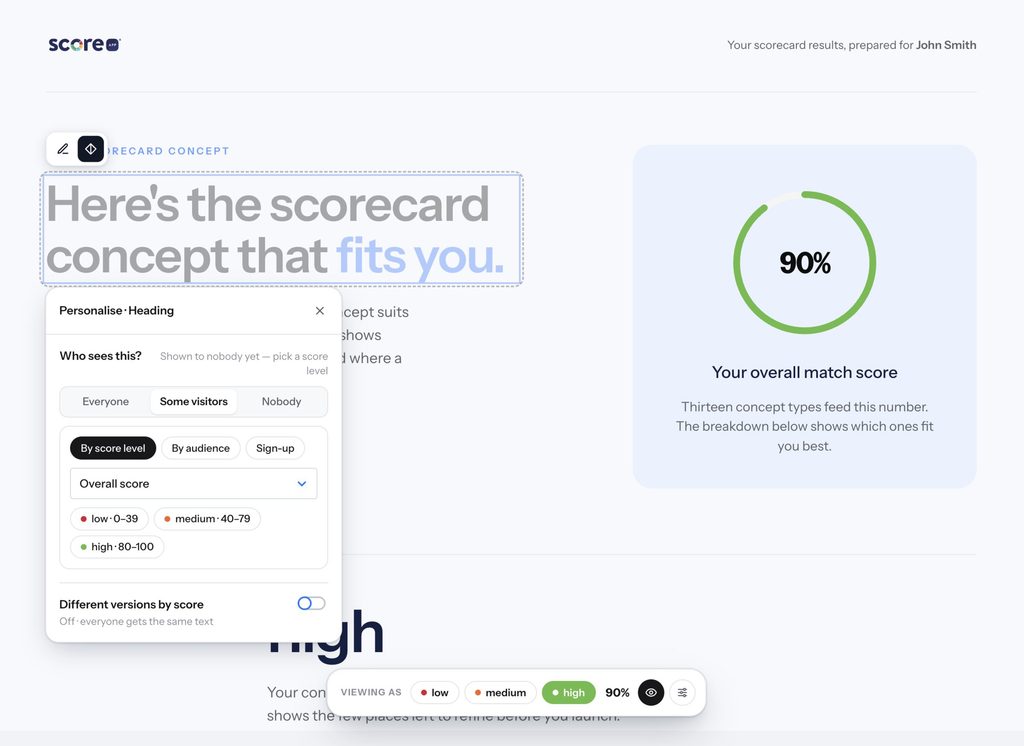
What changed: Every section on an AI result page now has a Personalize button. Use it to show the section to everyone, to nobody (useful when you want to hide something for now), or to some visitors only.
When you choose some visitors, you can filter by:
- Score – pick the score (overall or a category) and the tiers that should see the section
- Audience – show the section only to a specific audience, or hide it from one
- Sign-up status – show the section before sign-up, or only after a lead submits your lead form
Why it matters: Your leads aren’t all in the same place, so they shouldn’t all get the same next step. A high scorer might be ready for a call, while someone earlier on needs a guide first. Sign-up visibility also opens up a new approach. If you make your lead form optional, you can keep extra insight behind it. Leads see a preview of their results, and then they get more when they share their details.
How to use it: Click a section, then Personalize. Under Who sees this, choose your rule.
3. Tailor a section to each result
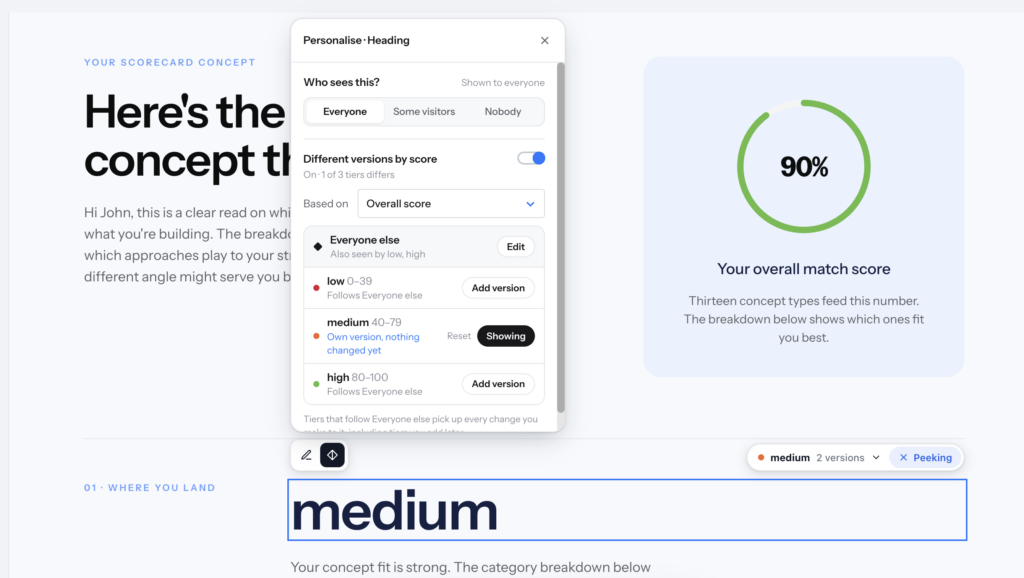
What changed: You can now create different versions of the same section for different score tiers. Everyone else sees the default version.
For example, you could write one version of your “next steps” section for mid-range scorers, another for high scorers, and a default for everyone else. Each tailored version is tagged, so you can switch between versions and edit each one.
Why it matters: You don’t need to duplicate whole pages or rebuild sections to speak to different results. One section can change its message to fit the person reading it. That makes each result feel more relevant, and it gives each lead a clearer next step.
How to use it: In Personalize, switch on Different versions by score. Choose the score and tiers, then use the version tags to edit each one.
4. Preview the page as any lead would see it
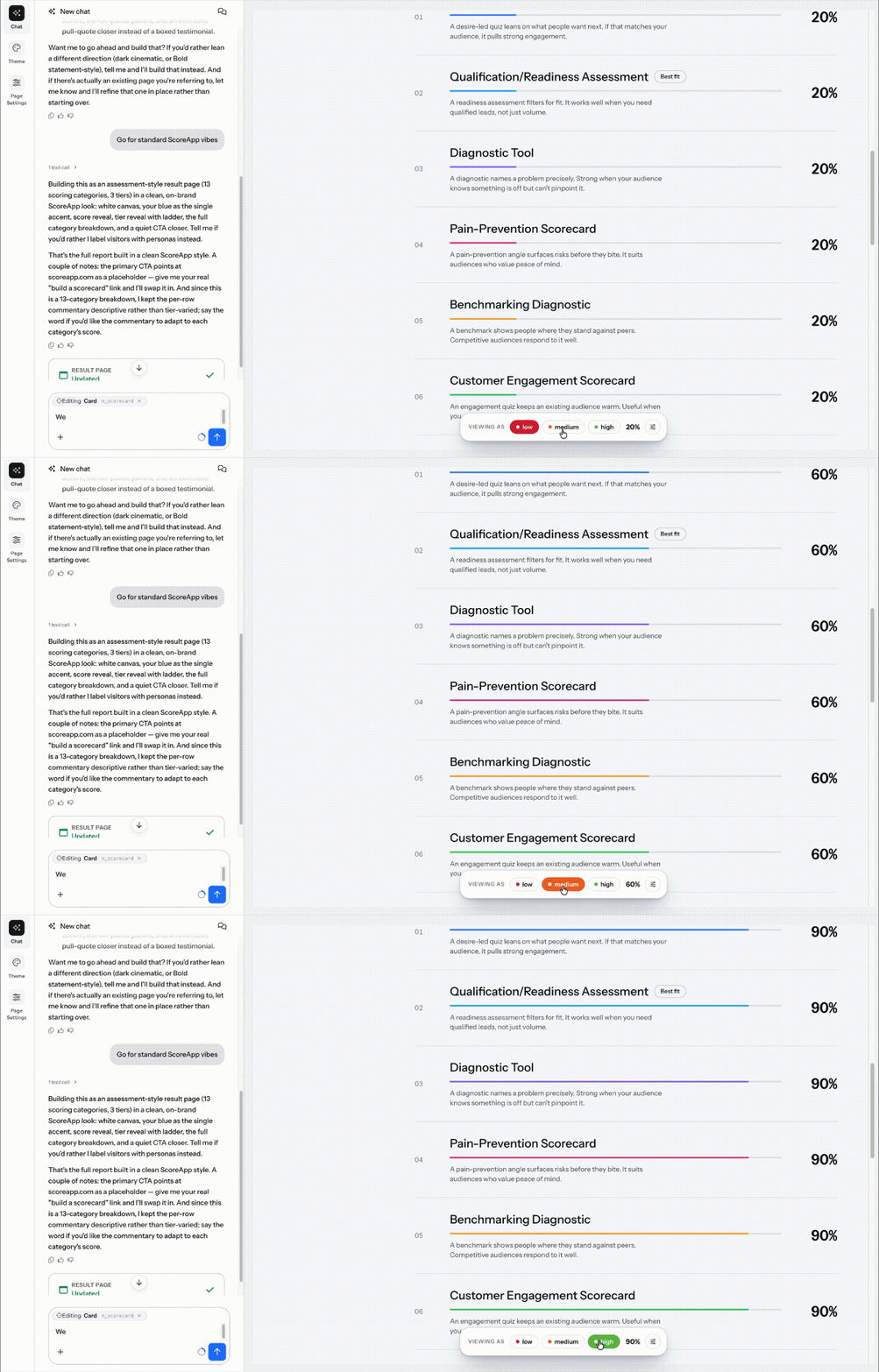
What changed: A new preview bar at the bottom of the editor lets you view the page as different leads. You can switch score tiers, toggle audience membership on and off, and choose whether you’re previewing before or after sign-up.
There’s also a score simulator. Drag the overall score, or adjust each category score one at a time, and watch the page update. When you change a category score, the overall score updates too. Click Relink to overall to tie them back together.
Hidden sections appear grayed out, so you can still see where they are. You can also hide them completely to see exactly what that lead will see.
Why it matters: Personalization only helps if you trust it. With the preview bar, you can check every combination before you publish, without creating test submissions.
How to use it: Open the preview bar at the bottom of the AI result page editor. When you’re happy with the page, click Publish.
Give every lead the right next step
With AI result pages, your results can do more than report a score. They can show each lead the next step that makes sense for them. Log in to try it on your scorecard today. Catch up on the rest of our recent updates too, including account-level brand kits and the AI scorecard builder.
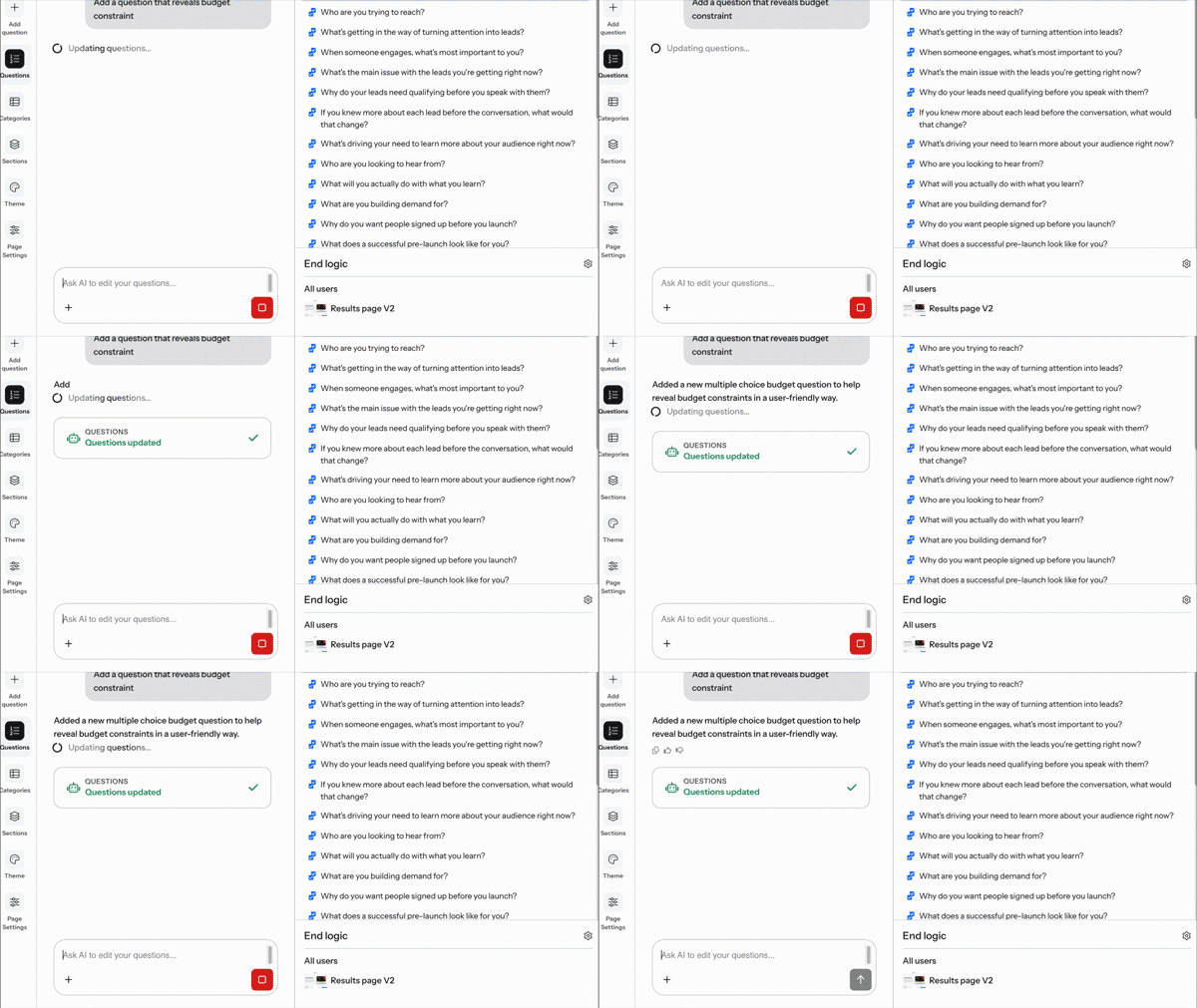
Plus we’ve integrated AI into all sections of the ScoreApp building process so building Landing Pages, writing Questions and the Results Pages can be built in moments.