ScoreApp platform updates: brand kits, AI-aware branding, and faster theme setup

Branding has been the quiet tax on running more than one scorecard. Every new one meant setting your colors, fonts, and logo again from scratch – and any rebrand meant doing it all over, one scorecard at a time. This ScoreApp update fixes that with brand kits: account-level branding you build once and apply everywhere, which now also tells our AI what your business actually looks and sounds like.
Here’s what’s changed and how to use it.
1. Brand kits now live at account level
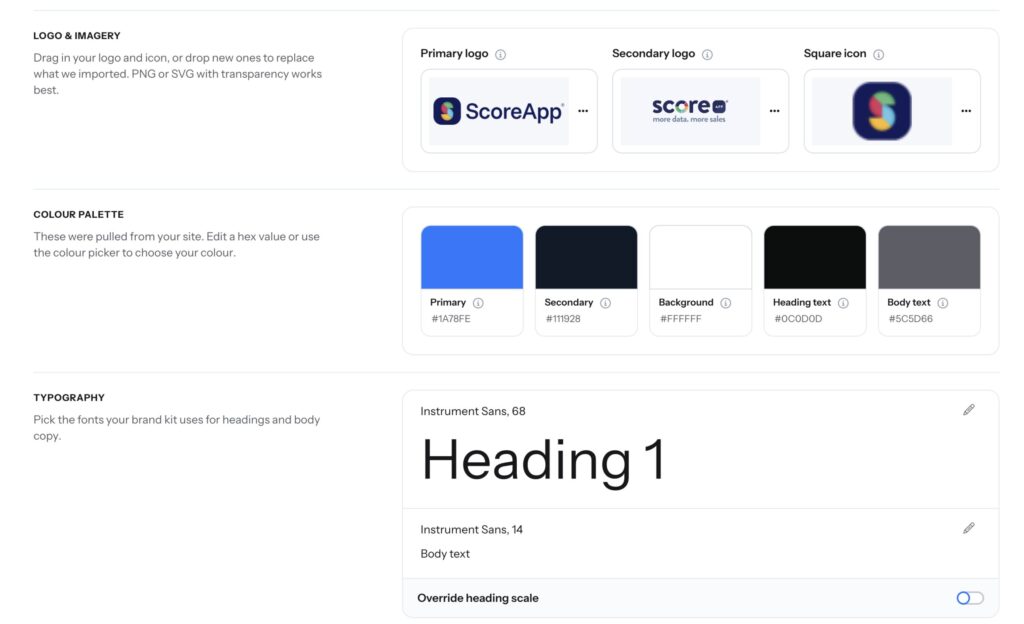
What changed: Typography, colors, and logos have moved out of individual scorecard themes into account-level brand kits you can apply to as many scorecards as you like.
Until now, branding lived inside each scorecard. That was fine when you had one. The moment you had four, you were re-entering the same hex codes, re-uploading the same logo, and hoping you’d matched the last one. Changing a brand color meant opening every scorecard in turn.
Why it matters: One kit, one source of truth. Your scorecards look like they came from the same business because they did – and when your brand changes, you change it in one place and every scorecard using that kit updates with it. For anyone running scorecards across multiple offers, campaigns, or clients, that’s hours back and a much lower chance of something going out off-brand.
How to use it: You’ll find Brand kits in the left-hand menu. It’ll be empty until you create your first one – that one is automatically set as your default, and your default can’t be deleted. You can build as many kits as you need, switch which one is the default, and remove the rest. Every new scorecard you create will use your default kit automatically.
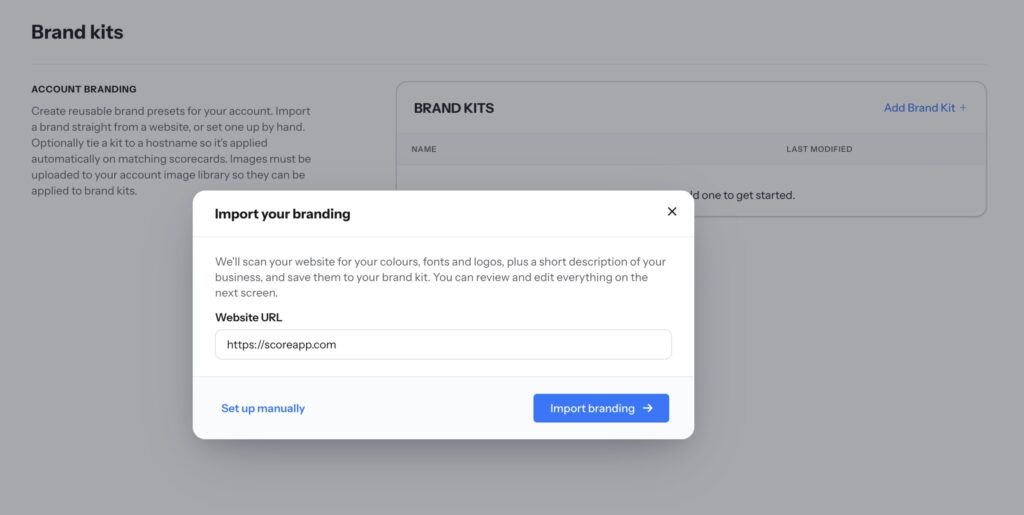
2. Build a brand kit from your website in seconds
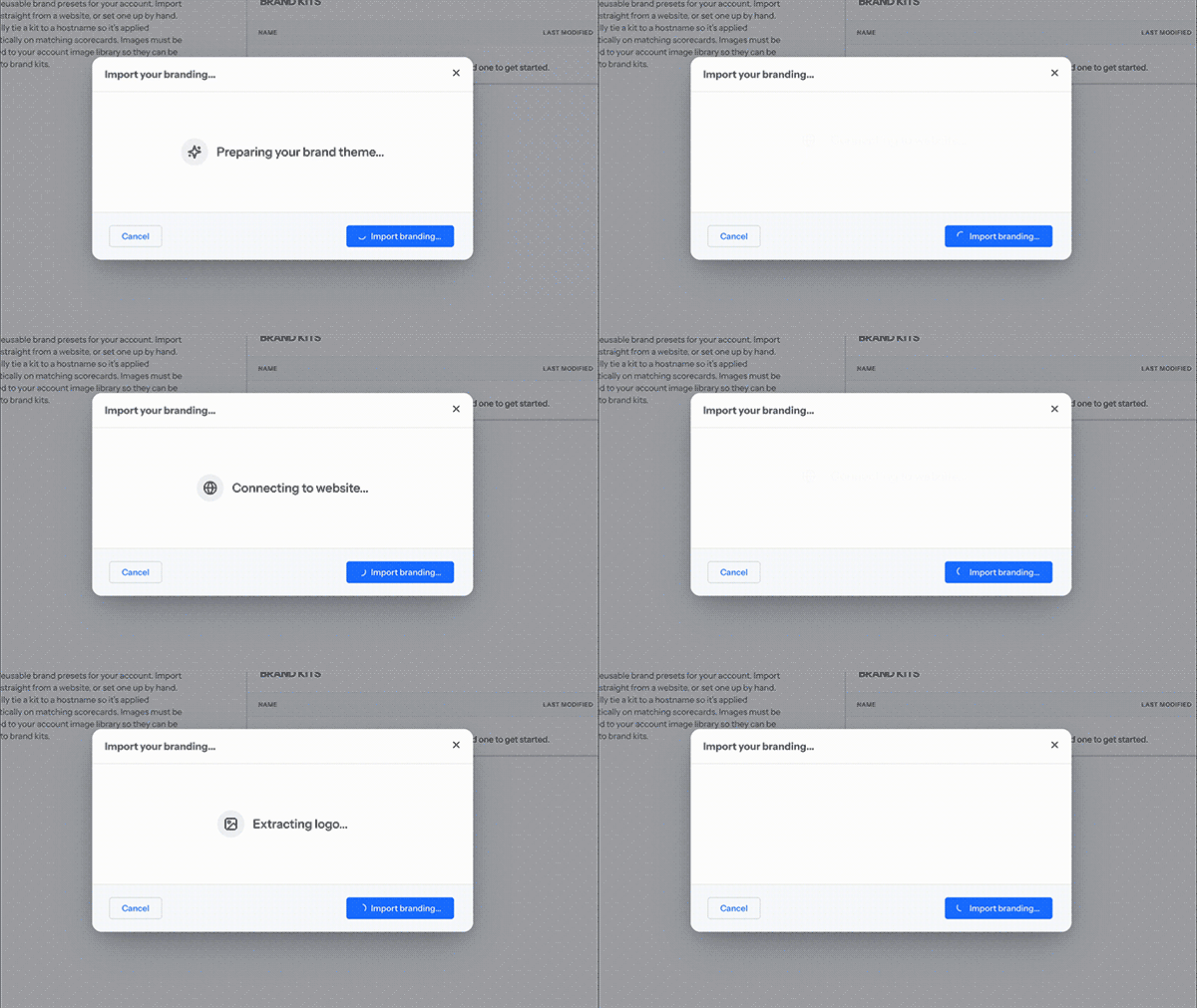
What changed: Instead of entering your branding by hand, you can point us at your website and we’ll pull the logos, colors, and typography from it.
Most people’s branding already exists somewhere – it’s just sitting on their site rather than in a document they can copy from. Hunting down hex codes and font names is nobody’s favorite ten minutes.
Why it matters: You get a complete, accurate brand kit without digging through brand guidelines or asking your designer for the exact blue. What we find is fully editable, so it’s a head start rather than a lock-in.
How to use it: Create a new brand kit, enter your website address, and give it a few seconds to scrape. You’ll see everything it found – open More branding options to fine-tune, or save the kit and adjust it on the brand kit page.
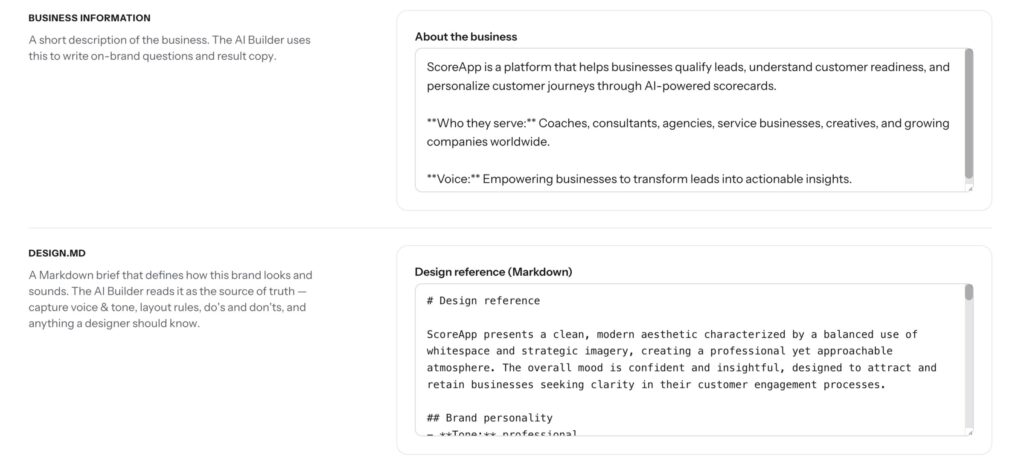
3. Your brand kit now tells the AI about your business
What changed: Each brand kit includes two new fields – business information and a design reference (design.md) – and our AI reads both before it builds anything for you.
Colors and fonts only get you so far. An AI-generated landing page can be perfectly on-palette and still miss what you sell, who you sell it to, and the style your audience already associates with you.
Why it matters: This is the part that changes the output. With business context and a design reference attached, asking the AI to build a landing page for your scorecard gives you something that reflects your business and your visual style from the first draft – not a generic layout you then have to spend an hour correcting. Both fields are filled in automatically when you build a kit from your website, and you can edit them any time to sharpen what the AI knows.
How to use it: Open any brand kit and you’ll see both fields on the kit page. Make sure the scorecard you’re working on has that kit applied, then head to Landing pages, create a new AI landing page, and ask for what you want.
4. Applying, switching, and saving the theme you already have
What changed: The first step of the scorecard setup guide is now Brand & theme, where you select a brand kit instead of editing a one-off theme. You can also switch kits from the theme settings of any page.
Why it matters: Branding a new scorecard is now a choice from a list rather than a setup job. And nothing is locked – if you want a scorecard to keep its own bespoke look, you can step back to a scorecard-level theme whenever you like.
How to use it: In the setup guide, open Brand & theme and pick the kit you want. To go back to a scorecard-level theme, press the X next to the selected kit. If a scorecard already has a theme you’re happy with, visit its landing pages (or any page) and you’ll see a prompt to save that theme as an account-level brand kit – one click creates the kit and switches the scorecard over to it, so nothing is lost in the move.
What’s coming next
Brand kits are the foundation, not the finished job. Next up: creating your first brand kit as part of onboarding, so every scorecard you build starts on-brand; in-chat prompts when a page would benefit from a kit you haven’t applied; and business context flowing into the question builder, so your AI-generated questions understand your business the same way your landing pages now do.
If you’ve been putting off tidying up your branding across scorecards, this is the moment. Log in, build your first brand kit from your website, and set it as your default – every scorecard you create from here starts looking like you.