AI scorecard builder: build, edit, and launch faster with new canvas mode

Building a scorecard with AI is fast. But until now, making small adjustments meant either typing out very specific instructions or going back into the questions builder after the AI finished.
We’ve changed that. The AI scorecard builder now has canvas mode – and it makes building, editing, and launching your assessment a noticeably smoother experience.
Here’s what’s new, how to access it, and what you can do with it.
What is canvas mode?
Canvas mode is a split-screen experience inside the AI Builder. When you start building a new scorecard, you’ll see the chat window on one side and your live scorecard on the other.
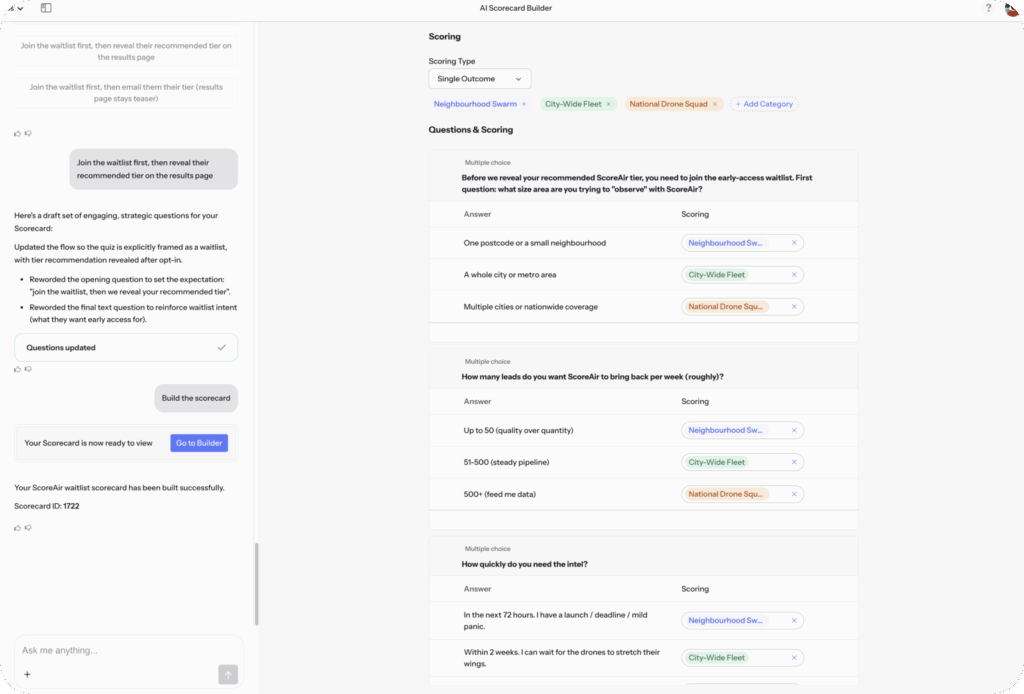
As the AI generates your categories and questions, everything appears on the canvas in real time. You can watch your assessment take shape – and step in to edit anything you like, directly on screen, without leaving the builder.
How to access canvas mode
Canvas mode is available now and switches on automatically. You don’t need to enable it or change any settings.
Here’s how to use it:
- Log in to your ScoreApp account and open the AI builder
- Enter a brief prompt describing your scorecard
- Answer the AI’s quick follow-up questions (scorecard type, categories, etc.)
- Watch canvas mode activate as the AI begins generating your content
- Edit anything directly on the canvas as it builds
That’s it. The AI handles the foundation, and you shape the details.
What you can edit directly on the canvas
Once canvas mode is active, you have full control over your scorecard without needing to relay changes through the chat.
Questions and answers Rename any question, change its type (multiple choice, scale, and more), and edit individual answer options directly on the canvas.
Scoring Adjust the score assigned to any answer without typing a request into the chat. Change values individually or across a whole category.
Categories Add new categories, remove ones you don’t need, or rename existing ones to better fit your assessment structure.
Order Reorder questions and answer options with a simple drag – no need to ask the AI to move things around.
Why the AI stays in sync with your edits
Every manual change you make is tracked. When you go back to the chat to ask the AI for further adjustments, it already knows what you’ve changed. You don’t need to re-describe your scorecard or explain your edits. The AI and the canvas work from the same version at all times.
So if you edit three questions manually and then ask the AI to add a new category, it incorporates the request with full awareness of the scorecard as it currently stands.
What you can build with this
Canvas mode is useful for any scorecard project, but it’s particularly valuable when you want precise control over the output.
Lead qualification assessments – Build a scorecard that scores and segments your leads automatically. Use the AI to generate the structure, then refine the scoring thresholds and answer options to match how you actually qualify clients.
Readiness assessments – Create an assessment that tells prospects where they are in their journey and what they need to do next. Edit the outcomes and category names to match your exact framework.
Client diagnostic tools – Build a discovery or audit-style scorecard for new clients. The AI gives you a strong starting point; canvas mode lets you tailor it to your specific process without extra back-and-forth.
Audience segmentation – Use a scored assessment to segment your audience based on their responses. Adjust the scoring directly on the canvas to make sure the right people land in the right segment.
Why this matters for your marketing
The gap between “AI builds it” and “it’s ready to publish” used to involve a round trip through the questions builder and a fair amount of copy-editing in the chat. Canvas mode closes that gap.
You get the speed of AI generation combined with the precision of manual editing – in a single, uninterrupted workflow. For businesses using ScoreApp as their primary lead gen tool, that means faster time to launch and more confidence in the quality of your assessment before it goes live.
Try it now
Canvas mode is live for all ScoreApp users. Open the AI Builder, start a new scorecard, and it activates automatically.