ScoreApp platform updates: customizable result page charts and new chart types

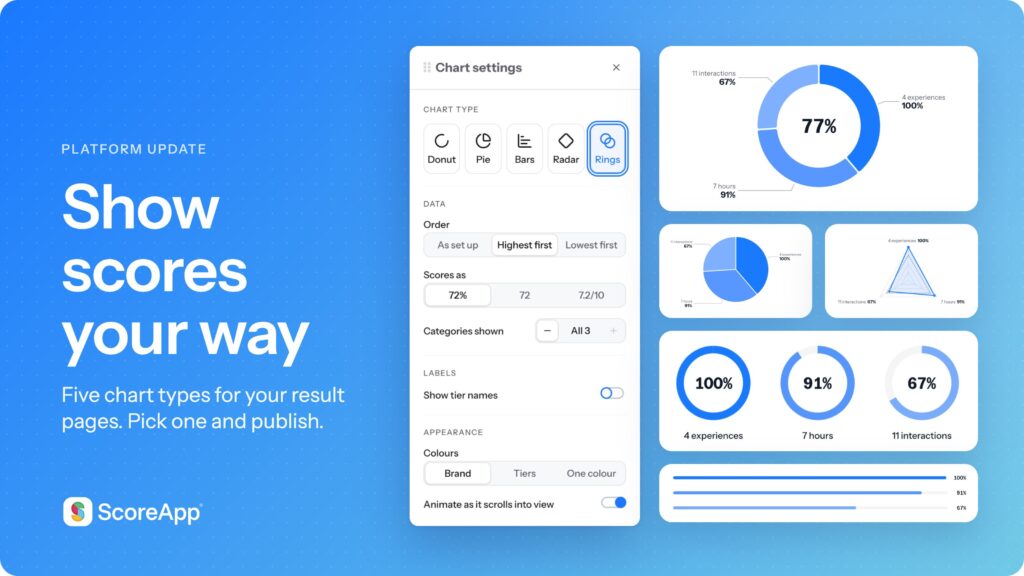
Your result page is where a lead finally sees what their answers mean, so it should look and behave the way you want. This ScoreApp update adds new result page charts and gives you settings to tune each one. Here’s what’s new.
1. Customize your overall score chart
What changed: The overall score chart now has its own settings, including three layouts: dial, ring, and number.
You can pick the layout, choose whether the chart reflects your overall score or a single category, set the score format, show or hide the score name, and adjust the line weight. Some settings apply to every layout, and others are specific to one.
Why it matters: The first thing a lead sees sets the tone for the rest of their result. A bold number suits a quick, punchy result. A dial or ring suits a result that feels more like a progress check. You decide, rather than settling for a default.
How to use it: Click the chart settings button on the chart, then choose a layout and adjust the options below it.
2. Show where a lead’s score lands with a slider or ladder

What changed: There are two layouts for showing a lead’s score in context: slider and ladder. The ladder rearranges the same elements into a different layout. Both currently work with the overall score.
Why it matters: Seeing a score in context helps a lead understand where they are and what’s next. That clarity is what makes a result feel useful rather than just a number on a page.
How to use it: Open the chart settings on this chart and switch between slider and ladder to see which one fits your result page.
3. Choose how many categories to show
What changed: The category chart now supports bars or grid layouts, and you can set how many categories it displays.
Rather than listing every category, you can limit the chart to a set number, such as a lead’s lowest three.
Why it matters: A long list of categories can dilute the message. Showing the lowest three points a lead straight to their biggest opportunities, which makes your recommended next step feel earned, not forced.
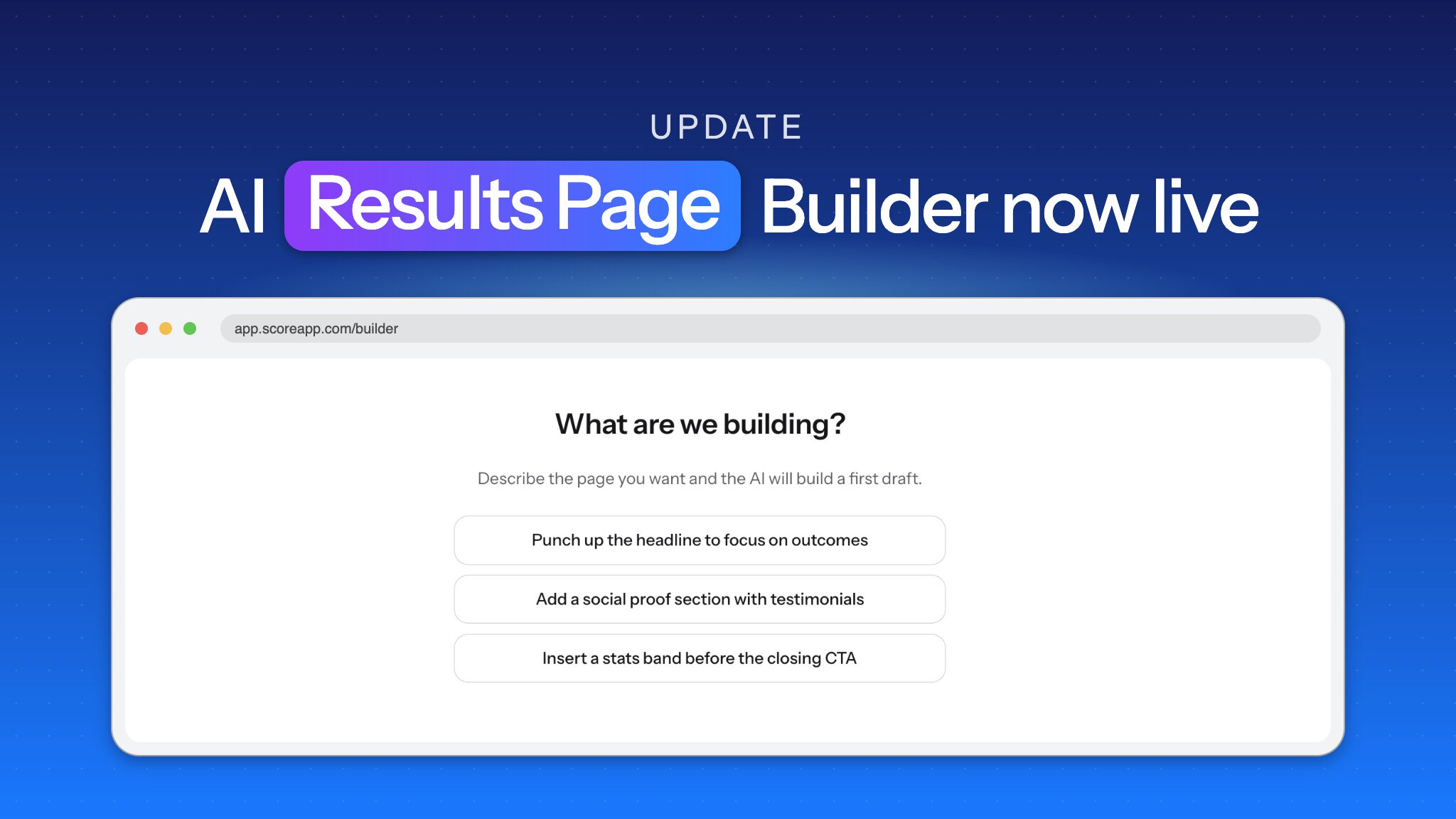
If you want a different take on the bars layout, ask the AI builder to switch it.
How to use it: Open the chart settings on the category chart, pick bars or grid, then set the number of categories you want to show.
4. Break down results with donut, pie, bars, radar, or rings
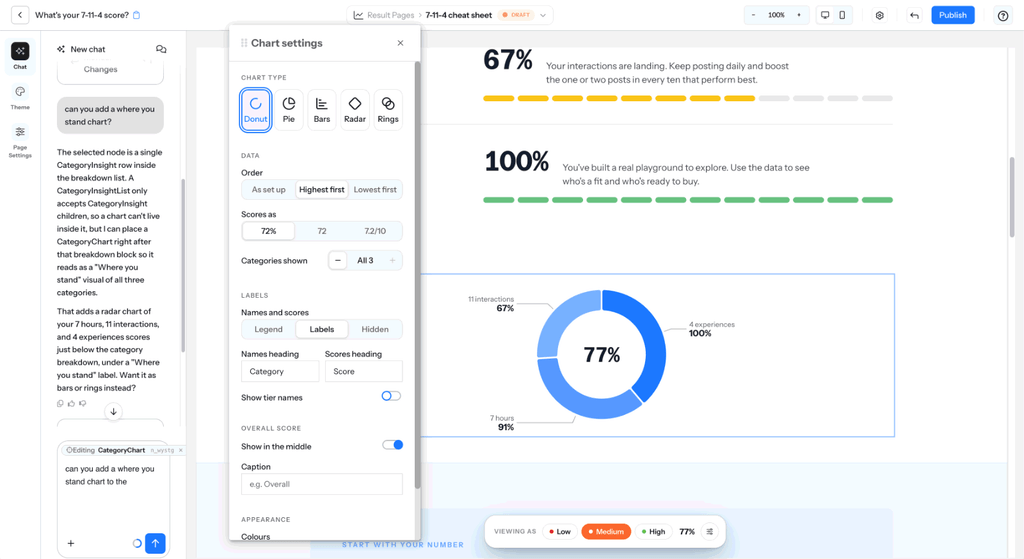
What changed: The category breakdown chart now offers five layouts: donut, pie, bars, radar, and rings.
For donut and pie charts, you choose how the data is labeled. Show a legend on the right, labels that sit around the chart, or hide both. With the legend, you can rename the column titles, so “Category” can become “Area” if that fits your language better. You can also add a caption beneath the overall score and pick your own colors.
Bars and rings share most of the same settings. Radar adds an option to show or hide a dashed marker for the overall score.
Why it matters: Different audiences read results differently. A coach might want the visual shape of a radar chart, while a service business might prefer the simplicity of bars. Renaming labels and choosing colors means the chart sounds and looks like your business, not a template. Pair it with a brand kit and the rest of your scorecard matches.
How to use it: Open the chart settings on the category breakdown chart and pick a layout. Then adjust the legend, captions, and colors to suit.
Give every lead a result that looks like yours
Your result page is the part of your scorecard every lead sees. If you haven’t looked at it in a while, now’s a good time to try these settings. Once leads start scoring, AI Insights can analyze the full scorecard for you in one click.
Customize your result page charts
Log in to ScoreApp, open your scorecard’s result page, and try the new chart settings. New to ScoreApp? You can try it for free. See pricing.